Login Information to Record with Panopto Capture
- Go to https://uthvideo.uth.tmc.edu/
- From the dropdown menu, choose UTHealth Canvas Server
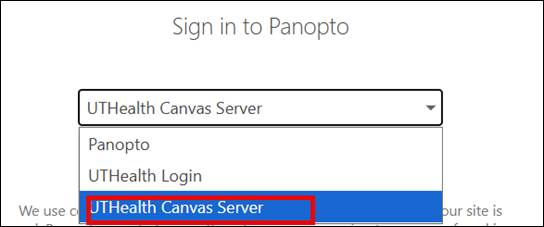
- On the Login to Canvas page, choose UTHealth Houston > Login with your UTHealth credentials

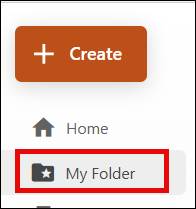
- Once logged in, go to My Folder > Click the Create button in the upper left corner of the screen
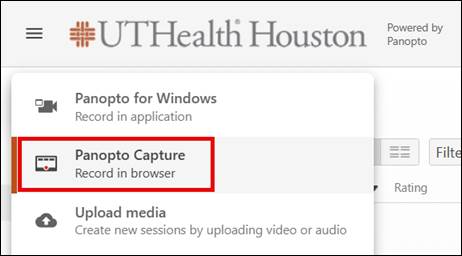
- Click Panopto Capture > Choose “Screens and Apps” to record a voice-over PPT
Please watch this recording for how to make a recording with Panopto Capture: https://support.panopto.com/s/article/How-to-Create-a-Video-Using-Panopto-Capture
Please record a short test video before recording your full session to make sure the audio and screen actions are recorded as expected!