OEP Accessibility Guide
Welcome to the OEP Accessibility Guide
This guide is designed for faculty and coordinators who create and share course materials with students. Our goal is to provide practical, easy-to-use resources that make accessibility part of your everyday workflow. You’ll find step-by-step guidance, examples, and tools to help you resolve common accessibility issues, build your skills, and create a more accessible learning experience for all students.
Use the links below to navigate to the sections of this accessibility guide.
- Upcoming Workshops
- I Need Help With…
- Common Issues
- UTHealth Accessibility Resources
- Need Additional Help?
Upcoming Workshops
OEP Curriculum Accessibility Workshops
Build practical accessibility skills through hands-on training offered in both face-to-face and online formats. Each session includes a 1-hour workshop followed by a 1-hour open lab, where OEP staff will help you review and remediate your own course materials.
Upcoming Accessibility Trainings
| Date | Time | Title | Description | Modality |
|---|---|---|---|---|
| 10/21 | 12-2PM | Accessibility Crash Course | 1-hour workshop followed by a 1-hour open lab | Virtual | Zoom |
| 11/10 | 12-2PM | Accessibility Crash Course | 1-hour workshop followed by a 1-hour open lab | Virtual | Zoom |
I Need Help With…
Accessibility challenges are often easier to fix than you might think. Start with the question that best matches your situation and explore practical solutions, examples, and resources designed to help you create accessible course materials with confidence.
PowerPoint Accessibility
How do I improve PowerPoint accessibility with the PPTX Accessibility Agent?
What to Do
- Go to the MSBI PPTX Accessibility Agent webpage (external link) and sign in using UTHealth Houston SSO or the applicable MD Anderson faculty login.
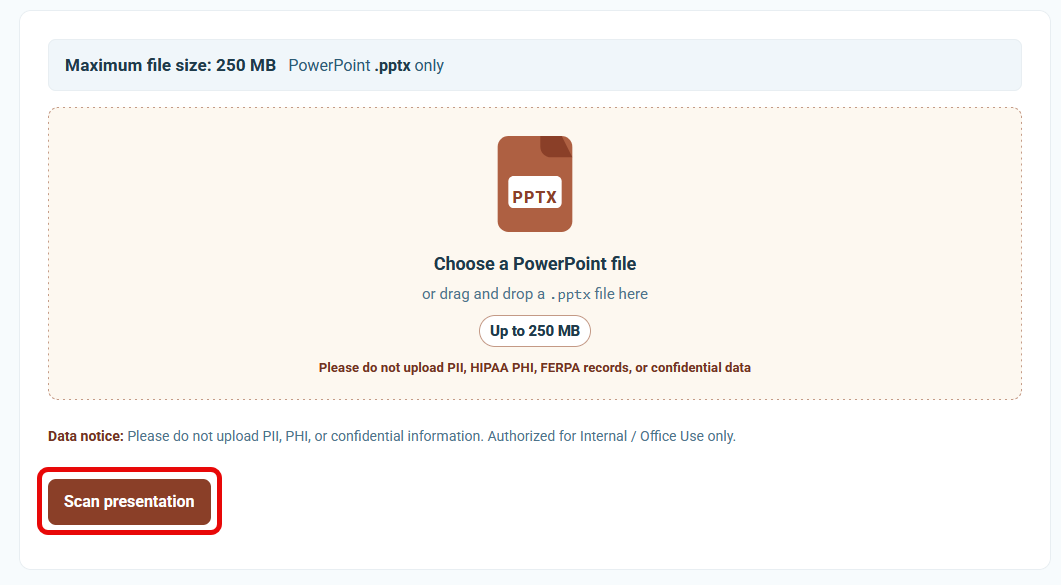
- Upload your PowerPoint presentation, then click Scan presentation.
- Read the “Always Review AI or Automated Remediation” notice, then click Continue.
- Review the items listed under the Suggestions section and approve the appropriate recommendations.
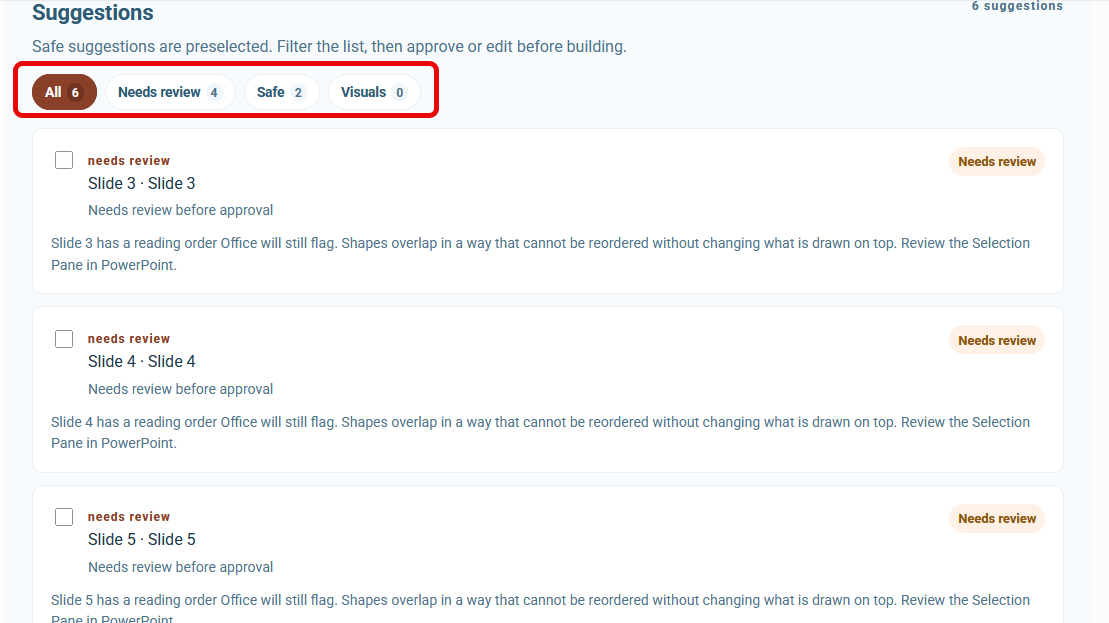
- Click Build Remediated Copy to generate and download the remediated PowerPoint presentation.
- Open the Remediated PPT in PowerPoint and fix the rest of the issues with the Accessibility Checker.
Best Practices
- Always review the remediated presentation before considering it final.
- Perform an additional accessibility check when possible, particularly for presentations that will be widely distributed or used for instruction.
- If a presentation contains sensitive information, confirm your department’s approved process for handling that information before uploading it.
How do I add alt text to images in PowerPoint?
What to Do
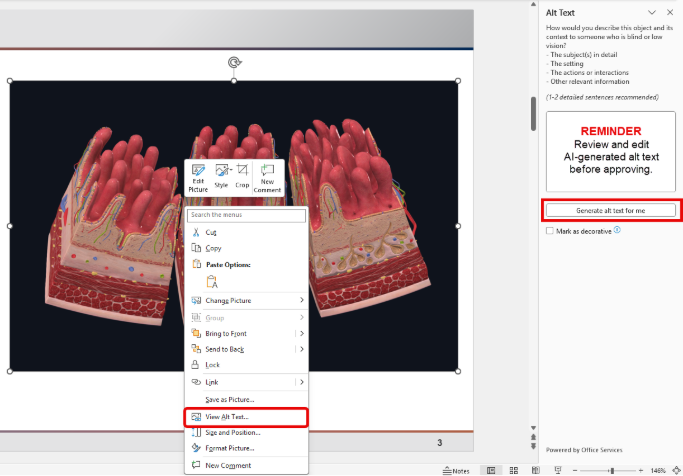
- Right-click the image.
- Select View Alt Text.
- Enter a concise description.
- Mark decorative images as decorative.
Best Practices
- Focus on information relevant to learning.
- Keep descriptions concise.
- Avoid starting with “Image of” or “Picture of.”
- Review AI-generated alt text from Qualified Health (external link) or Copilot (external link) for accuracy and relevance before approving it.
How do I make sure every slide has a title?
Slide titles help students and assistive technology users navigate your presentation.
What to Do
Add a Visible Title
- Select Home > Layout.
- Choose a layout that includes a title placeholder, or insert a text box at the top of the slide to serve as the title.
Add a Hidden Title
If a visible title does not fit your design:
- Add a title placeholder or text box with the slide title.
- Position the title just outside the visible slide area so it is not seen during presentation mode but remains available to assistive technology.
Best Practices
- Use descriptive slide titles.
- Make each title unique.
- Avoid multiple slides named “Overview.”
How do I add alt text to images in PowerPoint?
What to Do
- Right-click the image.
- Select View Alt Text.
- Enter a concise description.
- Mark decorative images as decorative.
Best Practices
- Focus on information relevant to learning.
- Keep descriptions concise.
- Avoid starting with “Image of” or “Picture of.”
- Review AI-generated alt text from Qualified Health (external link) or Copilot (external link) for accuracy and relevance before approving it.
How do I fix reading order in PowerPoint?
What to Do
- Select Review > Check Accessibility.
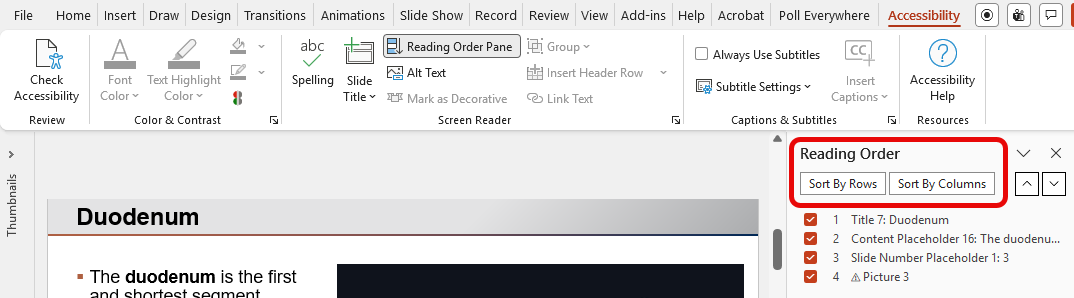
- Open the Reading Order Pane.
- Review the order in which slide content will be read.
- Use Sort by Column to arrange content from top to bottom.
- Use Sort by Row to arrange content from left to right.
- If needed, manually rearrange items in the Reading Order Pane.
- Check that all meaningful content is included and decorative items are marked as decorative.
Best Practices
- Arrange content in the order you want students to experience it.
- Review complex slides carefully, especially slides with multiple columns, tables, charts, or text boxes.
- Check the reading order after making changes to the slide layout.
How do I make tables accessible?
What to Do
- Add a clear, descriptive title or heading for the table.
- Use the first row as header cells when appropriate.
- Keep the table structure simple and consistent.
- Make sure information is presented in a logical reading order.
- Avoid using merged or split cells when possible.
- Add alt text to the table when needed to provide important context.
Best Practices
- Use tables to organize data, not to create page layouts.
- Keep tables as simple as possible.
- Make sure column and row headers clearly describe the information in the table.
- Avoid unnecessary blank rows or columns.
- Check that the table can be understood when read from left to right and top to bottom.
Word Document Accessibility
How do I organize my document using headings?
What to Do
- Highlight heading text.
- Select the Home tab.
- Apply a built-in Heading style.
- Use headings in sequential order.
Best Practices
- Heading 1 for major sections.
- Heading 2 for subsections.
- Don’t create headings by only changing font size or bolding text.
How do I create accessible lists?
What to Do
- Highlight the list items.
- Select Bullets or Numbering.
- Avoid manually typing dashes or numbers.
Best Practices
- Use built-in list tools.
- Use numbered lists when sequence matters.
How do I add alt text to images in Word?
What to Do
- Right-click the image.
- Select View Alt Text.
- Enter a concise description.
- Mark decorative images appropriately.
Best Practices
- Describe educationally relevant information.
- Keep descriptions brief and meaningful.
- Review AI-generated alt text from Qualified Health (external link) or Copilot (external link) for accuracy and relevance before approving it.
How do I create accessible tables?
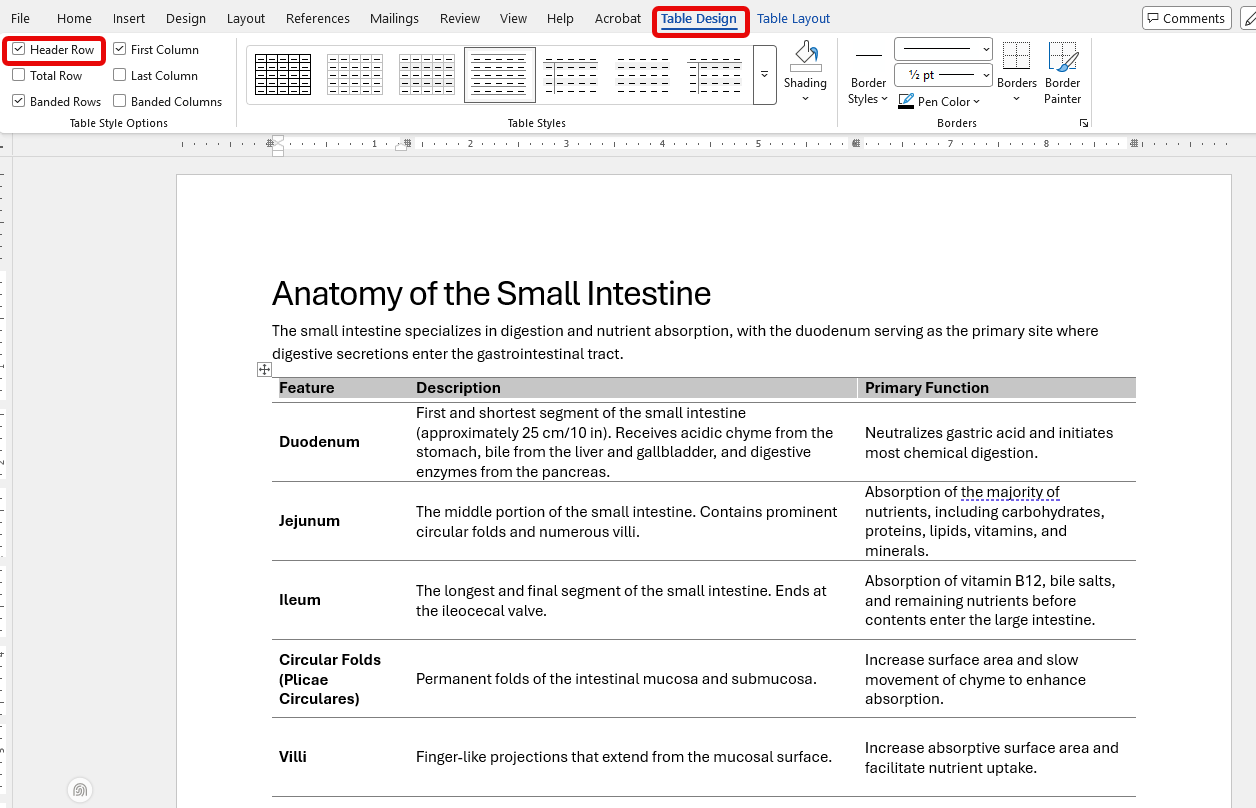
What to Do
- Select the table.
- Open Table Design.
- Enable Header Row.
- Add meaningful column headings.
- Keep the table structure simple and consistent.
Best Practices
- Use tables to organize data, not to create page layouts.
- Keep tables as simple as possible.
- Use clear headings that describe the information in each column or row.
- Avoid merged or split cells whenever possible.
- Avoid unnecessary blank rows or columns.
PDF Accessibility
How do I create an accessible PDF with CampusMind?
CampusMind is provided by UTHealth. It leverages AI to make PDF files accessible and compliant with WCAG standards, and each page processed incurs a cost to the university, approximately $0.10 per page.
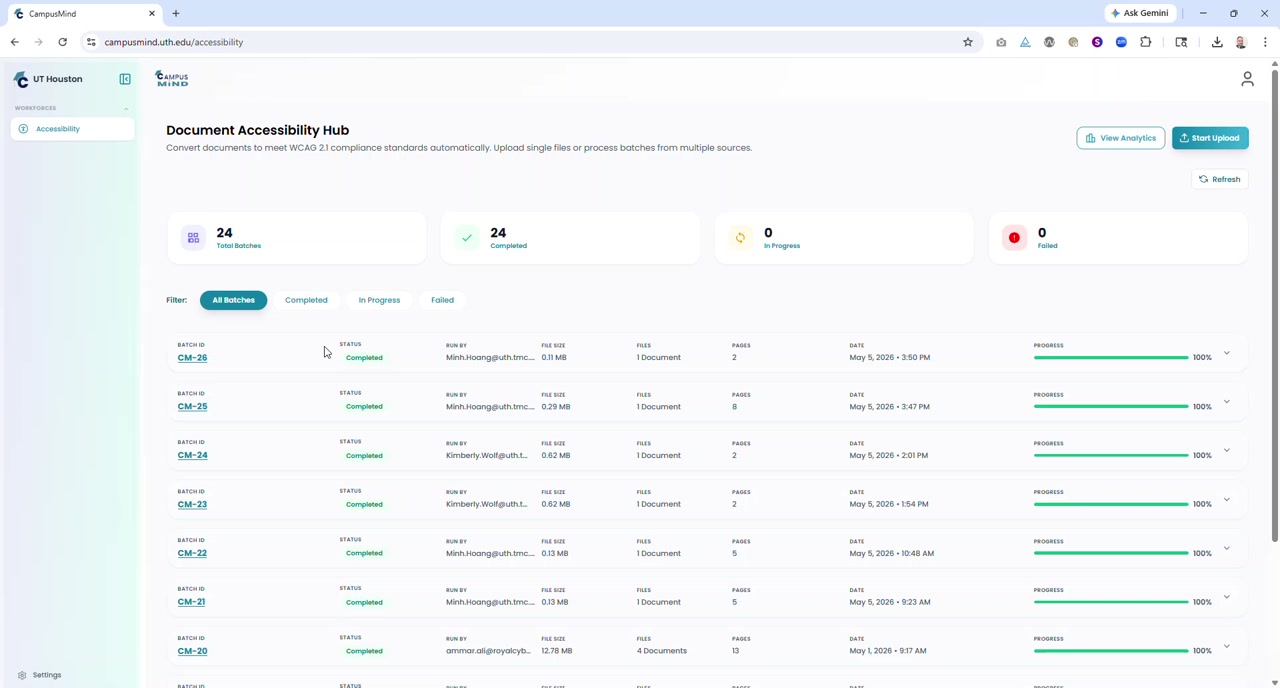
What to Do
- Request a CampusMind account through ServiceNow (external link).
- Sign in to the CampusMind Accessibility site (external link).
- Open the Accessibility area and upload your PDF.
- Review the available remediation options and select the one that best fits your document.
- Run the remediation.
- Return to the dashboard to monitor the status.
- When the remediation is complete, review the remediated PDF and comparison or output results.
- Download the remediated PDF and remediation report when available.
Best Practices
- Start with one PDF at a time while learning the CampusMind workflow.
- Review the remediated PDF before considering it final.
- Compare the remediated file with the original to make sure content and formatting are correct.
- If a document contains highly sensitive information, confirm your department’s approved process for handling that information before uploading it.
- Once you are comfortable with the process, you can use the bulk upload option for multiple files.
How do I create an accessible PDF in Adobe Acrobat Pro?
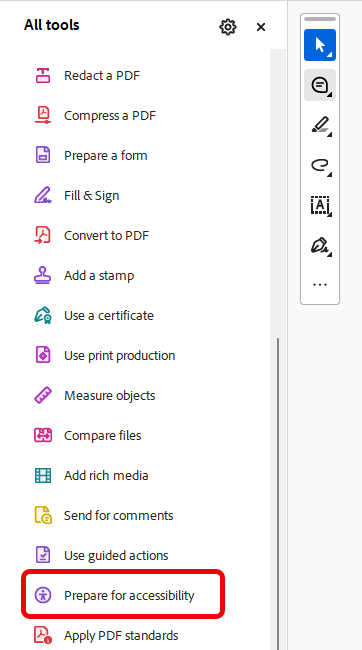
What to Do
- Create an accessible Word or PowerPoint file first.
- Export the file to PDF.
- Open the PDF in Adobe Acrobat Pro.
- Run the Accessibility Check.
- Review and correct any identified issues.
- Manually review the PDF to verify that content is accessible and in a logical reading order.
Best Practices
- Accessibility starts in the original document.
- Check the PDF after exporting to make sure accessibility features were preserved.
- Use the Accessibility Check as a starting point, but don’t rely on it to identify every accessibility issue.
- Don’t wait until the PDF is created to address accessibility issues.
How do I add a document title to a PDF in Adobe Acrobat Pro?
What to Do
- Open the PDF in Adobe Acrobat.
- Select File > Properties.
- Enter a title in the Title field.
- Save the PDF.
Best Practices
- Use a meaningful title that identifies the document and its purpose.
- Make sure the document title is different from the file name when appropriate.
How do I verify my PDF has tags?
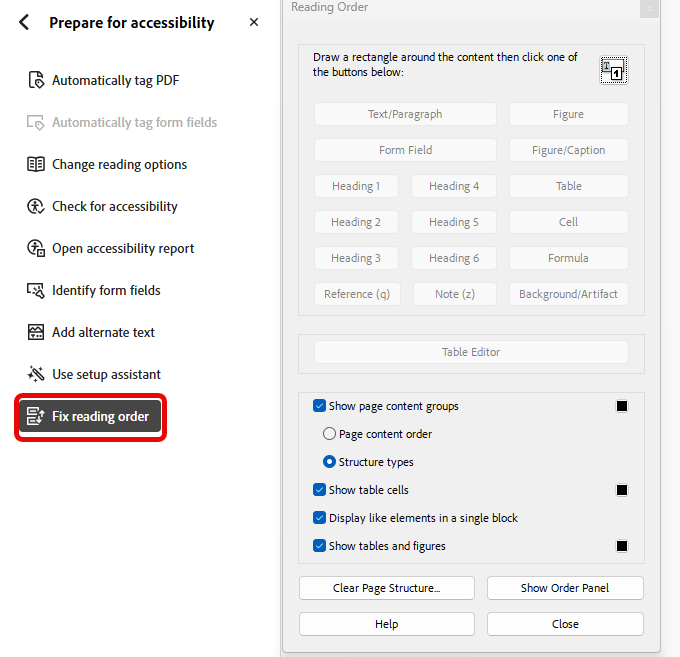
What to Do
- Open the PDF in Adobe Acrobat Pro.
- Open the Tags panel.
- Review the tag structure and confirm that meaningful content is tagged.
- If tags are missing or incorrect, use Acrobat’s accessibility tools to add or correct them.
- Review the tag order to make sure it follows the logical reading order of the document.
Best Practices
- Tagged PDFs provide structure that helps screen readers interpret document content.
- Verify that headings, paragraphs, lists, tables, and other meaningful content are tagged appropriately.
- Don’t assume a PDF is accessible just because it has tags; review the tag structure and reading order.
Common Issues
How do I generate effective alt text using Copilot or Qualified Health?
What to Do
- Upload or provide the image to Copilot (external link) or Qualified Health (external link).
- Ask the tool to generate a concise alt text description.
- Review the generated alt text for accuracy and relevance.
- Ask yourself: “What information would students miss if this image disappeared?”
- Edit the alt text to include important information students need for learning.
- Approve the alt text only after you have reviewed it.
Best Practices
- Focus on information relevant to the learning objectives.
- Be concise and specific.
- Make sure the description accurately reflects the image and its purpose.
- Avoid starting with “Image of” or “Picture of.”
- Mark decorative images as decorative.
- Do not approve AI-generated alt text without reviewing it first.
Example
- Good: Histology slide showing villi and crypts of the small intestine.
- Poor: Picture of tissue.
How do I fix color contrast?
What to Do
- Use dark text on light backgrounds whenever possible.
- Avoid light gray text.
- Test color combinations using a contrast checker.
- Increase contrast when readability is questionable.
Best Practices
- Black text on white backgrounds.
- Dark blue on white backgrounds.
- Avoid
- Yellow text on white backgrounds.
- Light gray text on white backgrounds.
How do I create accessible hyperlinks?
What to Do
- Use descriptive link text that tells students where the link goes or what it does.
- Ask: “If a student heard only this link, would they know where it goes?”
- Replace vague link text such as “Click Here” with a clear description of the destination.
Best Practices
- Describe the destination or purpose of the link.
- Include keywords from the destination page when helpful.
- Make link text meaningful when read on its own.
Example
- Good Example: View the Canvas Accessibility Guide
- Bad Example: Click Here
How do I make sure my content is readable?
What to Do
- Use plain language when possible.
- Break up long paragraphs.
- Use headings and lists.
- Avoid excessive jargon when not instructionally necessary.
Best Practices
- One idea per paragraph.
- Use white space effectively.
How do I choose an accessible font?
What to Do
- Use common, easy-to-read fonts.
Recommended Fonts
- Aptos
- Calibri
- Arial
- Verdana
Best Practices
- Avoid decorative fonts.
- Maintain consistent font usage.
What font size should I use?
Word Documents
- 11-12 pt minimum for body text
PowerPoint
- 24 pt minimum for body text
- 32 pt or larger preferred
Best Practices
Larger text improves readability for everyone.
UTHealth Accessibility Resources
Use these university-approved resources, tools, and support services to help you create and maintain accessible course materials.
- UTHealth Houston AI PowerPoint Accessibility Assistant (external link)
- Steps for creating accessible course content (external link) (UTHealth Login Required)
- Faculty Digital Accessibility Broad Guidance (external link)
- Digital Accessibility Hub (external link)
- UTHealth Accessibility Contact Email: [email protected]
Need Additional Help?
Most accessibility issues can be resolved using the guides, examples, and resources available in this guide. However, some situations may require additional support. Contact OEP if you need assistance. We’re here to help you find practical solutions and create accessible learning experiences for all students.