Examplify for the iPad
Preparing your iPad for a Secure Exam
- Tap the Examplify icon.

- Scroll to the bottom of the Software License Agreement and click the I Agree.
- Enter the Institution ID: McGovern > Select The University of Texas Health Science Center at Houston McGovern Medical School > tap Next.
- Log in with your UTHealth account
- Tap Sign In
Downloading your Exam
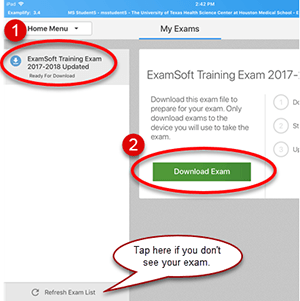
- Once registered, you will find exams available to download on the left-hand side. Tap the exam name to select the exam. If you do not see the exam you are scheduled to take, tap the Refresh Exam List button.
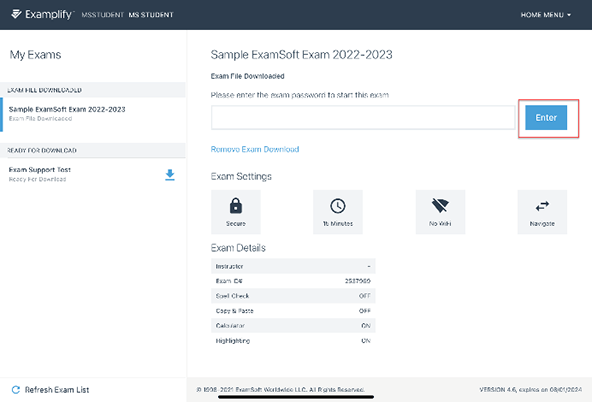
- Tap the Download Exam button to download the exam to the device. You can review the exam details and settings for the exam.
- Enter the case-sensitive password provided to you and tap Enter.
Beginning your Exam
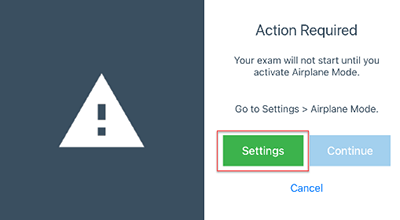
Note: Airplane mode has to be enabled to begin the exam!
- On the Action Required screen, tap Settings.
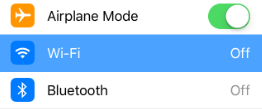
- On the Settings screen, under Airplane Mode, tap the slider to turn it on.
- Return to the home screen > Tap the Examplify icon to return to the Action Required screen > Click Continue.
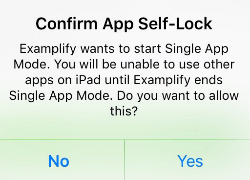
- A popup to confirm App Self-Lock will appear. Tap Yes to confirm Assessment Mode.
- On the Exam Notice screen, agree to the Honor Code by tapping Continue.
- Wait at the “Do Not Start Until Instructed” screen until you are instructed to start your exam.
- When instructed, tap Continue > tap the toggle button I am authorized to start my exam > tap Start Exam. You will now be in your exam.
Submitting and Uploading your Exam
- Once you have completed the exam, tap Exam Controls > tap Submit Exam from the dropdown menu.
- At the warning screen, tap the toggle button I confirm that I have completed my exam > Submit Exam. You may not re-enter the exam after exiting this screen. If you need to return to your exam, tap Go Back.
- On the Answer File Completed and Saved screen, tap Settings > Turn off Airplane mode.
- Return to home screen > Relaunch Exemplify > tap Next to upload your exam.
- At the green “Congratulations” screen, tap Return to Dashboard.
You will be automatically logged out of the application, and it will return to the Software License Agreement screen.