Adding Users to Canvas Catalog Course

  1. From the course homepage, select People from the left navigation menu.
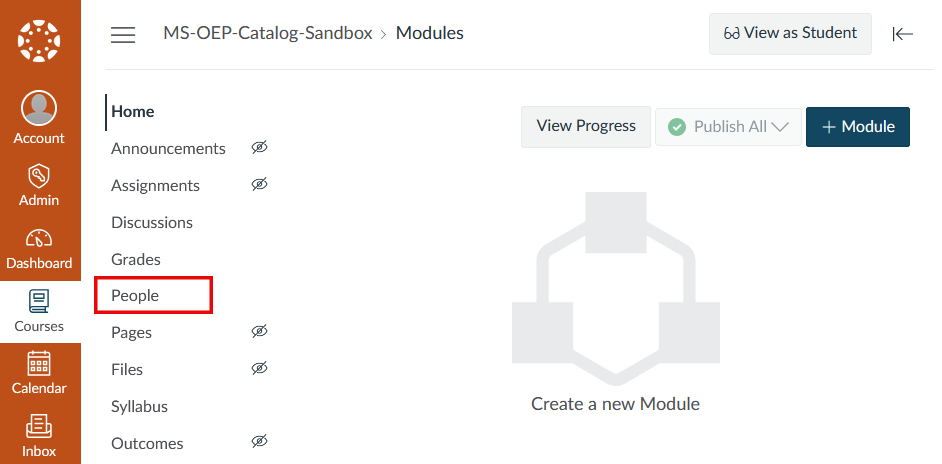
    Canvas course homepage with the left navigation menu displayed. The People link is highlighted to show where users access the course roster.
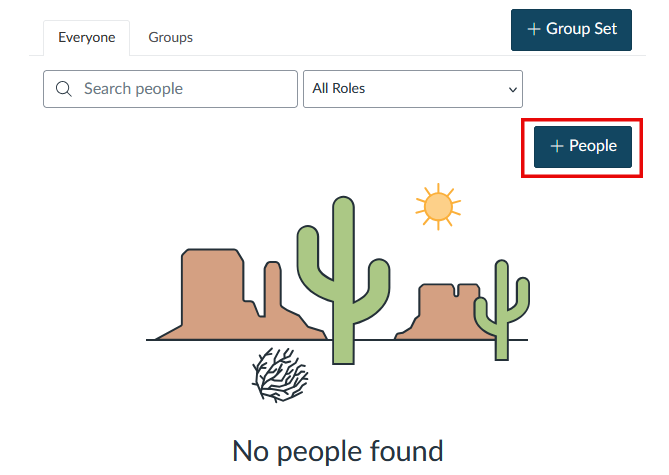
  2.  Click the + People button.
    People page in Canvas showing the + People button highlighted in the upper-right corner.
  3. In the Add Users window, select the Login ID radio button.
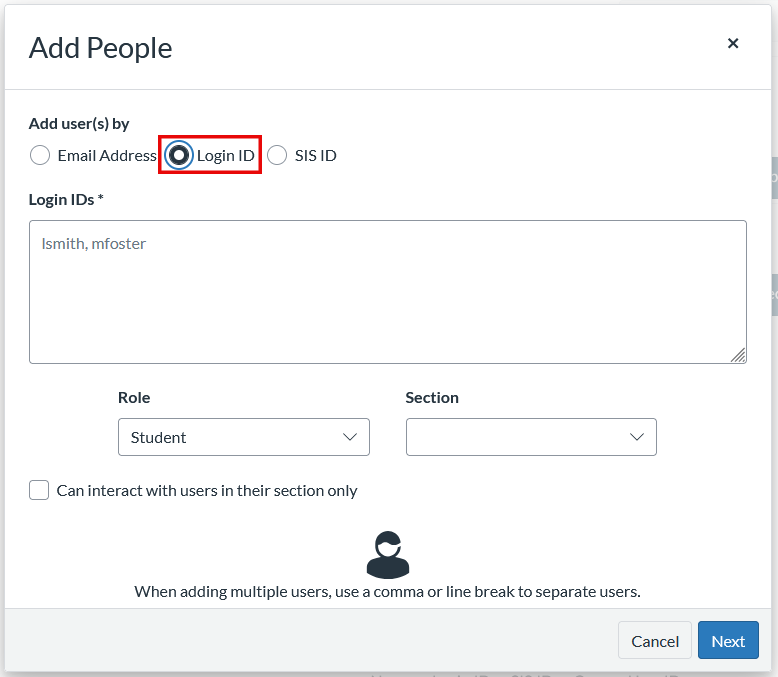
    Add Users window with the Login ID option selected and highlighted.
  4. Enter the email address associated with the user’s account in the Login IDs field.
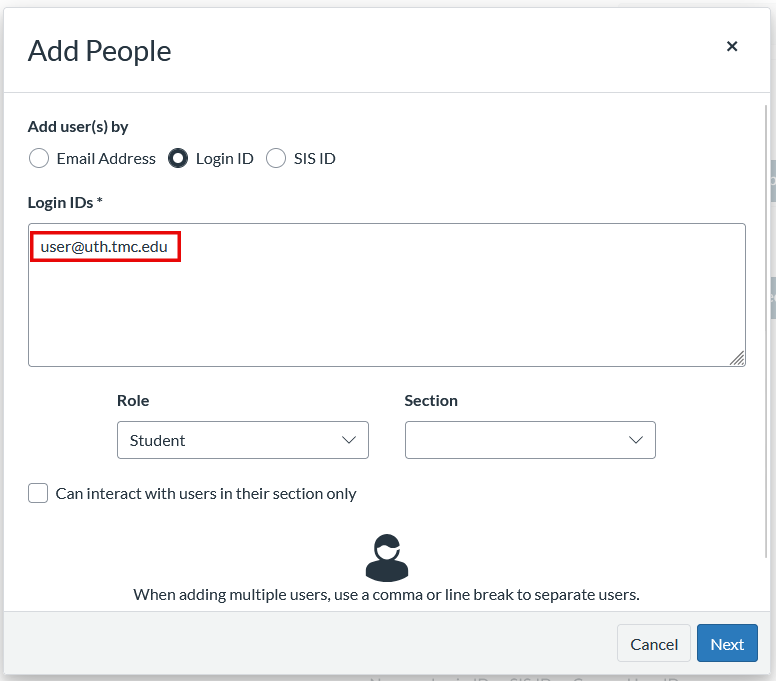
    Add Users window showing an email address entered in the Login IDs field.
  5. Select the appropriate Role, then click Next.
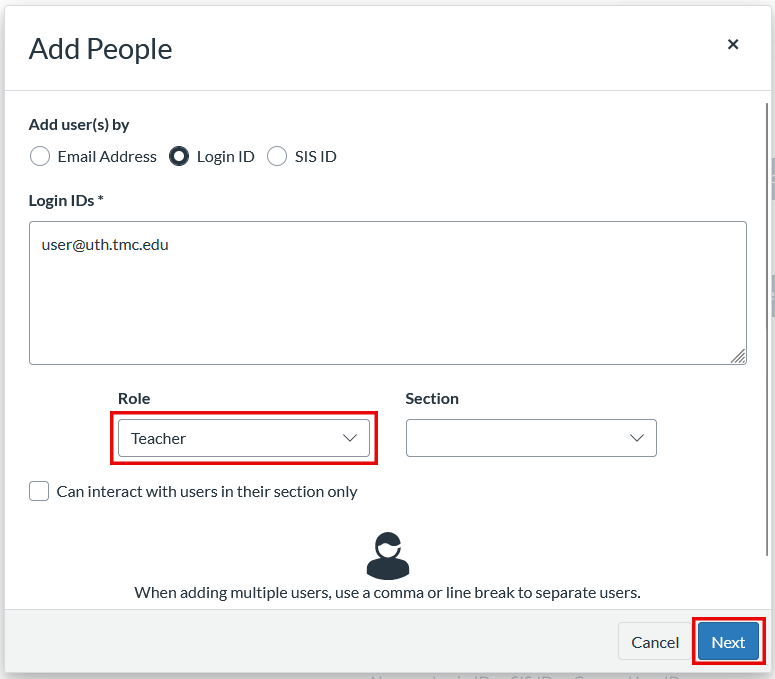
    Add Users window with a role selected from the Role menu and the Next button highlighted.
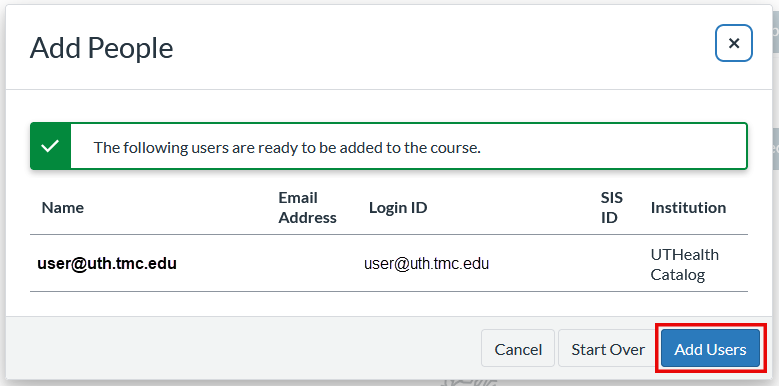
  6. Review the user information, then click Add Users to send the invitation.User review screen displaying the entered account information with the Add Users button highlighted.
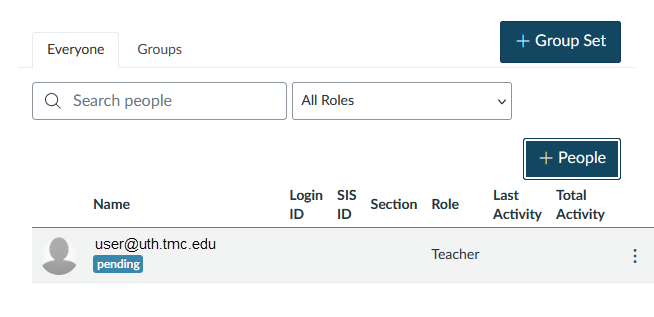
  7. The user will appear with a Pending status until they accept the course invitation.People page showing a newly added user with a Pending status indicating the course invitation has not yet been accepted.